Image to PDF - PDF Converter
- 0.0
- Rating
- 1.00M
- Installs
- Free
- Price
 Analysis by App-foxy
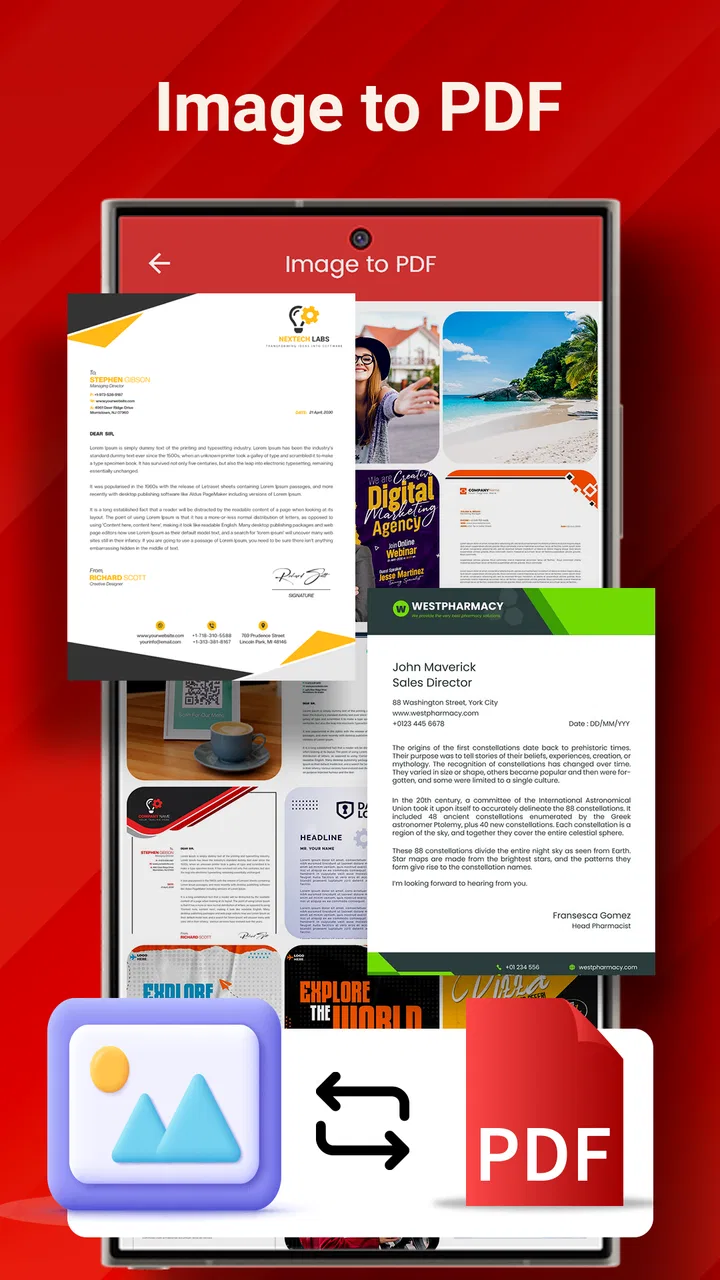
When paper starts piling up, the hardest part is often not creating a PDF but deciding what to do with each page. A receipt may need to be kept for a return, a signed form may need to be sent immediately, and a handwritten note may be useful only for a week. Image to PDF - PDF Converter, developed by BestAppsHub, is designed for that narrow but common problem: turning images into PDF documents and making basic edits without forcing you into a larger office suite.
I see it as a practical business app rather than a complete document-management system. It is free to install, available for Everyone, and supports devices running Android 7.0 or later. The app has reached over 500K installs, which makes it a familiar option for people who want a straightforward mobile conversion tool instead of a complicated desktop workflow. Its current version is 3.8.3, and optional purchases range from around five dollars to around fifty dollars per item.
From loose images to a usable document
Before using a converter, I usually make one decision that saves more time than any button inside the app: I separate images by purpose. Pages that belong together go into one temporary folder or album, while unrelated photographs stay out of the way. This matters because a converter can assemble the wrong pages just as easily as it can assemble the right ones. A clean starting point makes the final PDF easier to name, share, and find later.
You May Also Like

 Blood Strike: 2.5 Anniversary
Blood Strike’s Loadouts Turn Every Drop Into a Tactical Gamble
A close look at Blood Strike’s custom loadouts: how fast access to signature weapons reshapes its battle royale rhythm, rewards preparation, and narrows the gap between fights.

 Pandora - Music & Podcasts
Pandora’s Music Is Easy to Start, but Harder to Recover
Pandora’s strength is its low-effort path from a seed to a station. Its weak spot is how much confidence it asks you to place in connection, setup, and quiet recovery.

 8 Ball Pool
8 Ball Pool Is Built on Rivalries, Rematches, and Routine
A close look at the rivalries, rematches, shared routines, and unanswered safety questions that turn a quick pool match into a persistent mobile community.

 Samsung Music
Samsung Music’s Quiet Strength Is Playing What You Already Own
Its reach comes less from spectacle than from dependable access to a personal library. That simplicity is both the app’s strongest retention engine and its ceiling.

 AccuWeather: Weather Radar
AccuWeather Review: A Quick, Clear Forecast for Everyday Decisions
For everyday plans, the best forecast is the one you can understand quickly. AccuWeather makes rain timing, radar, and local conditions easy to act on, with a few trade-offs.

 Hill Climb Racing
Why Hill Climb Racing Still Turns Crashes Into One More Run
A tiny car, a bumpy hill and one more upgrade: Hill Climb Racing keeps resurfacing because its simple chaos makes every near-miss feel personal.
More From Our News Desk



A realistic example is a small business owner preparing paperwork after a supplier visit. There may be a photographed invoice, a delivery note, and a signed confirmation. Rather than sending three image files through a messaging app, I would gather the relevant pictures, check their order, and use the app to create one document. The result is easier for the recipient to review and less likely to lose a page in a busy conversation.
The same approach works for personal administration. I might photograph a warranty receipt, a school form, or a rental document and convert it when I need a stable copy. The important habit is not converting every image automatically. It is deciding which images deserve a durable document and which can remain ordinary photos. That keeps storage and future searches under control.
The app’s central appeal is its focus on conversion and PDF editing. Its store summary presents it as a tool for converting different kinds of documents while editing PDFs, while the short description concentrates on image-to-PDF work. In practice, I would choose it when the source material begins as pictures and the destination needs to be a PDF, not when I need a full document collaboration platform.
Capture first, organize before exporting
Good capture is more important than it sounds. A tilted page, a dark corner, or a finger covering text can make the final PDF frustrating even if the conversion itself succeeds. I prefer to photograph one page at a time on a flat surface, with the camera parallel to the paper. If I am working with existing images, I first inspect them at full size rather than assuming that a clear thumbnail means readable text.
One useful workflow is to keep the original photographs until the PDF has been checked. I would not delete the source images immediately, especially for signed paperwork or financial records. After exporting, I open the PDF, move through every page, and check the edges, orientation, order, and legibility. Only then do I archive or remove the temporary images. This simple two-stage process prevents a small capture mistake from becoming a permanent document problem.
Page order deserves special attention when several images are involved. A useful trick is to give files temporary names with a leading sequence, such as “01,” “02,” and “03,” before selecting them. Even if the app offers its own ordering controls, this habit gives me a second visual check and reduces the chance of sending a document with a cover page buried in the middle.
For recurring paperwork, I would also use a consistent naming pattern outside the conversion step. A name such as “supplier-invoice-month” is more useful later than a generic export name. The app can create the document, but a sustainable productivity system still needs a place for the finished file and a naming rule that makes it retrievable.
Where editing helps and where it stops being enough
Basic PDF editing is valuable when the document is nearly ready but needs a small correction. For example, I may need to remove an unnecessary page, adjust the arrangement, or prepare a cleaner version before sending it. That is much faster than returning to a computer for every minor change. It also keeps a short task, such as sending two photographed pages to an accountant, from turning into a full desktop session.
However, I would not treat this app as a replacement for a full office editor. A PDF is usually a fixed-layout document, so changing the actual wording inside a complex form can be more demanding than changing page order or assembling images. If my work depends on advanced text reflow, tracked revisions, spreadsheet formulas, signatures with formal verification, or team comments, I would use a dedicated office or document-management product instead.
This distinction is important for choosing the right tool. Image to PDF - PDF Converter is strongest at the handoff between camera roll and shareable document. It is less suitable as the central place for long-term collaboration. I would use it to prepare a clean file, then move that file into the storage, accounting, email, or project system where the rest of the work happens.
A repeatable routine for everyday paperwork
I get the most value from this kind of app when the process becomes a routine rather than an emergency fix. My preferred sequence is simple: collect the pages, inspect them, convert them, review the result, name the file, and place it in its final location. The app handles the conversion stage, while the surrounding habits prevent clutter and mistakes.
For receipts, I would create a temporary weekly batch instead of converting every receipt immediately. At the end of the week, I could group receipts by purpose, create separate PDFs where that makes sense, and store them with the relevant records. This is more sustainable than producing dozens of one-page documents with unclear names. It also makes it easier to find a complete expense group later.
For forms, the routine should be more cautious. I would keep one untouched image set and one exported PDF, then compare the PDF with the photographs before sending it. If a form contains a signature or a handwritten answer, I would zoom in on those areas specifically. Small marks that look obvious on the phone’s camera preview can become difficult to read after conversion or sharing.
For notes, I would be selective. A meeting whiteboard may deserve a PDF if I need to share it with a team, but a temporary reminder probably does not. The useful question is whether the document will be reviewed, sent, or archived. If the answer is no, converting it may add another file without improving the workflow.
People often ask whether a free app is suitable for professional use. My answer is that suitability depends more on the document and the review habit than on the word “free.” For ordinary invoices, forms, notes, and image collections, it can be a sensible tool. For sensitive records, regulated workflows, or documents that require formal controls, I would first check whether the organization’s approved process allows a general-purpose converter.
Friction points I would plan around
The first likely friction point is input quality. No converter can reliably repair a page that was photographed at a poor angle or in weak lighting. I would spend a few extra seconds capturing the page properly rather than expecting editing to solve everything afterward. This is especially important for small print, faint receipts, and pages with information close to the edge.
The second is organization. Converting images is quick, but quick conversion can create a crowded folder of similarly named PDFs. I would decide in advance where completed files belong and use a naming convention. Without that step, the app may solve the immediate sharing problem while creating a later search problem.
The third is choosing the right output for the recipient. A PDF is usually more consistent than a group of images, but it may not be the best format for someone who needs to edit the original content. Before exporting, I ask whether the recipient needs to read, print, archive, or modify the document. If modification is the main goal, I would look for the original editable file rather than treating a converted PDF as equivalent.
There is also a cost consideration. The app is free, but in-app purchases are available, with individual items priced from around five dollars to around fifty dollars. I would explore the free workflow first and decide whether any paid option solves a real recurring problem. A person who converts a few pages each month may not need to spend anything, while a heavy user should examine the purchase screen carefully before building a business process around optional tools.
Another practical question is device compatibility. The minimum requirement is Android 7.0, so users on older Android releases should check their device before planning around it. For supported phones, the experience is most useful when the device has enough free space for the original images and exported documents. Keeping both versions during review is safer than converting while the phone is almost full.
How it compares with familiar alternatives
The most obvious alternative is sending the original images directly. That is faster for one informal picture, but it becomes awkward when pages need to stay together, remain in order, or print consistently. A PDF gives the recipient one document to open and reduces the chance that an image is overlooked in a message thread. For multi-page paperwork, I prefer the converted document.
Cloud storage apps can also scan or organize documents, and office suites may offer broader editing. Those options are better when I need shared folders, synchronized work, advanced text changes, or a long-term archive. Image to PDF - PDF Converter makes more sense when I want a focused conversion step without adopting a larger productivity platform for a small task.
Desktop converters remain preferable for large batches and complex files. A computer offers a bigger screen for checking page order and a more comfortable environment for detailed editing. The phone app wins when the paperwork is already on my phone or when I need to act immediately after photographing it. That is its practical advantage: reducing the distance between capture and delivery.
I would also distinguish it from dedicated scanning systems. A scanning-focused product may be a better choice for someone who needs a structured archive, advanced recognition, or a heavily automated intake process. This app is more approachable for occasional conversion and straightforward PDF preparation. Its value comes from being available at the moment a document appears, not from replacing every tool in a document workflow.
Who should build it into a workflow?
I would recommend it to freelancers, students, small business owners, field workers, and anyone who regularly receives paper but works digitally. It is especially useful for people who need to turn a few photographed pages into one clean file without opening a desktop program. The Everyone content rating also makes it broadly suitable for general users, although the sensitivity of a particular document should always guide where it is processed and stored.
It is a good fit for a person who wants a repeatable “capture, convert, check, send” routine. The app can remove a small but annoying barrier from everyday administration. A freelancer could prepare an invoice copy after a client meeting, a student could assemble photographed notes for submission, and a family could keep a readable PDF of a form instead of searching through a camera roll later.
I would skip it as my primary solution if my work involves extensive collaboration, complex document editing, large-scale scanning, or strict organizational controls. In those situations, a dedicated platform is likely to justify its extra complexity. I would also skip the conversion step when the recipient specifically needs an editable source file, since a PDF may preserve appearance while making content changes less convenient.
My final view is that Image to PDF - PDF Converter is most useful when treated as one small part of a disciplined system. It does not remove the need to capture pages carefully, name files sensibly, or verify the result. What it does offer is a direct bridge from images to a more manageable document, with PDF editing available when a quick correction is needed.
If your recurring problem is scattered paperwork on an Android phone, I think it is worth trying because the free entry point keeps the decision simple. Start with a small batch, keep the originals until you have checked the exported file, and see whether the routine genuinely saves time. The best reason to adopt it is not conversion alone, but the cleaner habit it can support: fewer loose images, clearer handoffs, and documents that are easier to find when you need them.
FAQs for Image to PDF - PDF Converter
01What features does the Image to PDF - PDF Converter app offer?
The Image to PDF - PDF Converter app provides a range of features, including converting multiple image formats (JPEG, PNG, etc.) into PDF files, batch processing for handling multiple images at once, and the ability to adjust PDF settings such as page size and orientation. It also supports secure sharing and cloud storage options.
02Is the Image to PDF - PDF Converter app free to use?
The app offers a free version with essential features, allowing users to perform basic image-to-PDF conversions. However, there may be in-app purchases or a premium version available that unlocks additional features, such as higher resolution conversions, no ads, and enhanced editing tools.
03How user-friendly is the Image to PDF - PDF Converter app?
The app is designed with a user-friendly interface, making it accessible for users of all experience levels. It features intuitive navigation, simple drag-and-drop functionality, and clear instructions, ensuring a smooth conversion process from images to PDF files. Beginners will find the app easy to navigate and use.
04Is the Image to PDF - PDF Converter app available for both Android and iOS?
Yes, the Image to PDF - PDF Converter app is available for download on both Android and iOS platforms. This ensures that users can access the app and its features regardless of their device type, providing flexibility and convenience for converting images to PDFs on the go.
05Are there any privacy concerns with using the Image to PDF - PDF Converter app?
The app prioritizes user privacy and security. It typically includes features such as password protection for PDFs and secure file sharing options. Additionally, users should review the app’s privacy policy to understand how their data is handled and ensure their personal information is protected during the conversion process.
Pros
- Easy to use interface for quick conversion.
- Supports various image formats seamlessly.
- Fast processing with minimal delay.
- Allows batch conversion for efficiency.
- No watermark on converted PDFs.
Cons
- Limited editing options for PDFs.
- Ads can be intrusive at times.
- Requires internet for some features.
- No cloud integration for backups.
- Free version has feature restrictions.

Image to PDF - PDF Converter
Gallery